Instagram Edits Desktop Launch: AI Agents Can Edit Videos
Discover Instagram Edits Desktop for Mac, its AI-agent editing, MCP integration, 4K exports and new tools for content creators.
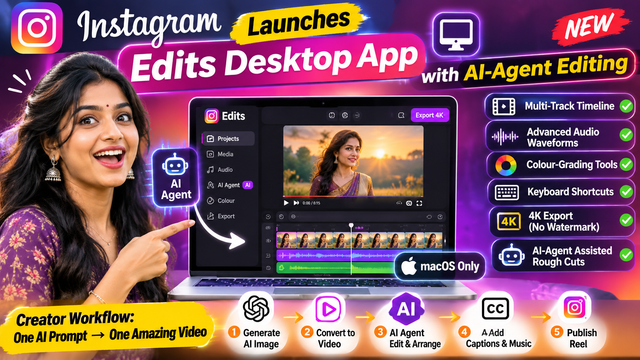
Instagram Edits Desktop Launch: AI Agents Can Now Help Creators Edit Videos
Instagram is taking another major step into AI-powered content creation. On November 5, 2026, Instagram introduced a desktop version of its popular Edits video-editing application for macOS, bringing advanced editing features and AI-agent integration to a larger screen.
The biggest highlight of this launch is not simply that creators can now edit videos on a computer. It is the ability to connect artificial intelligence agents to the editing application through the Model Context Protocol (MCP).
This means creators can potentially ask an AI agent to help organise video clips, prepare rough cuts and perform editing operations. They can then open the project in Edits and continue making adjustments manually.
The new desktop application also introduces a multi-track timeline, advanced audio waveforms, colour-grading tools, keyboard shortcuts, multiple aspect ratios and watermark-free 4K exports.
For Instagram creators, YouTubers, video editors and digital marketers, this update could change how short-form and long-form videos are produced.
Let's explore everything about Instagram Edits Desktop, its AI-agent capabilities, new features, limitations and opportunities for content creators.
1. What Is Instagram Edits?
Edits is Instagram's standalone video-editing application developed by Meta.
It was originally introduced for mobile devices in 2025 to help creators make videos without depending entirely on third-party editing applications.
The application provides tools for recording, editing, adding effects, creating captions and preparing videos for social media platforms.
It also connects with Instagram's creator ecosystem, making it easier to prepare and publish videos.
Previously, creators who wanted more precise editing often preferred working with desktop video-editing software.
Editing multiple clips, adjusting audio, managing different layers and creating longer videos can be difficult on a small mobile screen.
Instagram's new desktop release addresses this requirement by bringing Edits to macOS.
The desktop version is designed to provide a larger workspace and more advanced editing controls.
More importantly, it introduces a way for AI agents to interact with the editing tools.
2. Instagram Introduces Edits for macOS
The biggest announcement is the arrival of Edits on Mac computers.
Creators can now use a desktop workspace to organise footage, manage multiple video layers and perform more detailed editing operations.
The desktop interface provides several features that are particularly useful for professional content creation.
These include:
Multi-track video timeline.
Advanced audio waveforms.
Improved colour-grading controls.
Keyboard shortcuts.
Multiple video aspect ratios.
Watermark-free 4K exports.
Access to Instagram's audio library.
Direct publishing to Instagram.
The application also supports saved audio and text styles from the mobile version.
This makes it easier for creators to maintain a consistent editing style.
However, there is one important limitation: the desktop application currently supports macOS, not Windows or Linux.
Creators also cannot yet continue editing the same project interchangeably between mobile and desktop. Meta says cross-platform editing is in development.
3. The Biggest Update: AI Agents Can Help Edit Videos
The most interesting feature is AI-agent integration.
Instagram is introducing support for the Model Context Protocol, commonly known as MCP, within Edits Desktop.
MCP is a standard that allows AI applications to connect with external tools and services.
Instead of only generating text or answering questions, an AI agent can use connected tools to perform supported actions.
For example, an AI assistant could interact with an editing application, access available editing tools and help prepare a video project.
Instagram's Matthew Simari, head of product management for Edits, explained that creators can connect different AI agents, including Meta's Muse.
The important point is that the integration is not limited to Meta's own assistant.
Creators can use compatible AI agents to help edit, adjust and work with video projects.
How does AI-agent video editing work?
Imagine that you have recorded 20 video clips for an Instagram Reel.
Normally, you might need to:
Open your video-editing application.
Import all the clips.
Watch each clip individually.
Identify the useful scenes.
Arrange the clips in the correct order.
Remove unnecessary portions.
Prepare a rough cut.
Add music and captions.
Adjust the final video.
With AI-agent assistance, some of the initial editing work could be delegated.
You could ask a connected agent to prepare a rough cut using your selected footage.
The agent can interact with Edits through MCP-supported tools and create a starting project.
You can then open that project in Edits and continue editing manually.
This creates a workflow in which AI handles some repetitive preparation while the creator remains responsible for the final creative decisions.
Importantly, AI agents do not automatically guarantee a perfect finished video. The output still needs human review and creative adjustments.
4. What Is MCP and Why Is It Important?
MCP stands for Model Context Protocol.
It is an open standard designed to connect AI applications with external tools, resources and services.
To understand it simply, imagine an AI assistant that can only answer questions.
Without tool access, it cannot directly interact with your video-editing software.
Now imagine connecting that assistant to an application through MCP.
The assistant can discover and use the tools that the application makes available, subject to the permissions and capabilities provided.
For example:
A coding assistant can interact with development tools.
A research assistant can retrieve information from connected sources.
A productivity assistant can work with supported applications.
A video-editing agent can interact with editing tools.
In the case of Instagram Edits Desktop, MCP creates an interface through which compatible AI agents can interact with the editor.
Why does this matter for creators?
Previously, many AI tools were used separately from editing software.
A creator might generate a script in one application, create images in another application and edit the final video somewhere else.
Agent integration could reduce some of the manual switching between applications.
It also introduces a new possibility: instead of manually performing every editing operation, creators can describe certain tasks and allow an agent to prepare them.
This is an important development in the movement from AI-assisted content generation towards AI-assisted creative workflows.
5. Six Important Features of Instagram Edits Desktop
Let's examine the most useful features introduced with the desktop release.
Feature 1: Multi-Track Video Timeline
A multi-track timeline allows creators to arrange different elements on separate tracks.
For example, a video project may contain:
Main video footage.
Background music.
Voice recordings.
Sound effects.
Text overlays.
Additional visual elements.
Managing these elements on a desktop screen can be easier than working with a limited mobile interface.
Creators can make more precise adjustments to the arrangement of their footage.
Feature 2: Advanced Audio Waveforms
Audio is an important part of video production.
A good video can become less engaging if its background music, dialogue or sound effects are poorly timed.
Audio waveforms provide a visual representation of sound.
Creators can use them to understand where audio becomes louder or quieter and make more precise adjustments.
This can be useful when synchronising video cuts with music beats or spoken dialogue.
Feature 3: Professional Colour-Grading Tools
Colour grading helps videos achieve a consistent visual appearance.
For example, creators may want:
Warm cinematic colours.
Natural skin tones.
Dark and dramatic lighting.
Bright and colourful visuals.
A consistent brand appearance.
The desktop application provides advanced colour controls, including colour wheels and curves.
These tools can help creators make more detailed visual adjustments.
Feature 4: Keyboard Shortcuts
Keyboard shortcuts can improve editing speed.
Instead of repeatedly navigating menus, creators can use keyboard commands for supported editing operations.
This is particularly useful for people who edit frequently.
Meta also says keyboard shortcuts can be carried over from other editing applications.
Feature 5: Watermark-Free 4K Exports
Video quality matters when publishing professional content.
The new desktop application supports exports up to 4K without an Edits watermark.
This can be useful for creators producing high-resolution videos for Instagram and other platforms.
However, the final quality also depends on the original footage, editing settings and destination platform.
Feature 6: Multiple Aspect Ratios
Different platforms and content formats require different video dimensions.
For example:
9:16 for vertical Reels and Shorts.
16:9 for widescreen videos.
1:1 for square content.
Support for multiple aspect ratios gives creators more flexibility when preparing videos for different publishing formats.
6. How Meta Muse Fits Into the New Editing Workflow
Meta Muse is one of the AI agents that can be used with the new editing integration.
The Verge reported that creators can use Muse or another compatible AI agent to interact with Edits.
Consider a creator who has several video clips stored in a Downloads folder.
Instead of manually arranging every clip, the creator could ask an agent to prepare a rough cut.
The agent can use the available Edits tools to perform supported operations.
After the initial editing work is complete, the creator can open the project in Edits and continue working manually.
This is an interesting example of agentic AI.
Traditional AI tools usually respond to individual instructions.
AI agents can go further by using tools and completing multiple connected operations.
However, the quality of the result depends on the agent, the connected tools, the available instructions and the source footage.
Creators should review edits before publishing.
7. Instagram Edits Desktop vs Mobile Version
Both versions are part of the same editing ecosystem, but their workflows are different.
Feature | Mobile Edits | Desktop Edits |
|---|---|---|
Main platform | iOS and Android | macOS |
Video editing | Yes | Yes |
Multi-track timeline | Mobile workflow | Full desktop timeline |
AI integration | Creative assistant features | MCP agent integration |
Audio library | Yes | Yes |
Keyboard shortcuts | Limited mobile controls | Yes |
4K watermark-free exports | Check current mobile export options | Supported |
Direct Instagram publishing | Yes | Yes |
Cross-device project editing | In development | In development |
The desktop version is particularly useful for creators who want more screen space and detailed editing controls.
The mobile version remains useful for quick edits and creating videos directly from a phone.
8. Important Limitation: Windows Users Cannot Use the Desktop Version Yet
Although the announcement is exciting, there is one major limitation.
The new desktop application currently supports macOS only.
Windows and Linux users cannot download an official desktop version at this time.
This means that creators using Windows laptops or desktop computers will need to continue using other editing solutions or the existing mobile application.
Another limitation is the lack of cross-device project editing.
For example, a creator cannot yet start editing a project on a phone, continue the same project on a Mac and then return to the phone with the same project seamlessly.
Meta says it is working on this functionality.
The company also plans to release regular weekly updates to improve the desktop application.
Creators should check Instagram's official Edits page for the latest compatibility and download information.
9. What Does This Mean for Indian Content Creators?
India has a large creator ecosystem.
Thousands of people create Instagram Reels, YouTube Shorts, educational videos, product promotions, entertainment content and AI-generated videos.
Many creators spend significant time on editing.
They need to organise clips, add captions, select music, create transitions and prepare content for publishing.
AI-agent integration could make parts of this process more efficient.
Opportunity 1: AI Video Content Creation
Creators can experiment with combining AI-generated images, video generation tools and desktop editing.
For example, a creator could generate a collection of visuals using an image-generation tool, convert them into video clips and then arrange them using an AI-assisted editing workflow.
Opportunity 2: Educational Content
Students and educators can create tutorials explaining programming, mathematics, AI tools and technology updates.
A desktop editor with a multi-track timeline can help organise screen recordings, voiceovers, demonstrations and captions.
Opportunity 3: Digital Marketing
Small businesses can explore creating promotional videos, product demonstrations and social media advertisements.
A reusable editing workflow can help maintain consistency across campaigns.
Opportunity 4: Freelance Video Editing
Freelancers can experiment with AI-assisted rough cuts and editing workflows.
This may help them reduce repetitive preparation work, although professional review and creative direction remain essential.
Opportunity 5: AI Creator Education
Creators can develop educational series showing how AI tools work.
Instead of only posting a final result, they can demonstrate the complete workflow.
This can help audiences understand the tools and learn practical skills.
10. A Practical AI Content Workflow for Instagram Creators
Here is an example of how creators can combine AI tools with Edits Desktop.
Step 1: Generate an idea
Use an AI assistant to brainstorm Reel topics, headlines and video concepts.
Step 2: Write the script
Prepare a short script with an engaging opening, useful information and a clear conclusion.
Step 3: Generate visuals
Use image-generation tools to create relevant visuals for the video.
Step 4: Create video clips
Use a suitable video-generation tool or record original footage.
Step 5: Import the clips into Edits
Organise the source footage in the desktop editing application.
Step 6: Use AI-agent assistance
Where supported, connect an AI agent through MCP and ask it to help prepare a rough cut.
Step 7: Edit manually
Review the arrangement, adjust timing, improve audio and correct any mistakes.
Step 8: Add captions and music
Use suitable text, audio and caption features.
Step 9: Export the video
Prepare the video in the required aspect ratio and export at the appropriate quality.
Step 10: Publish and analyse
Publish the Reel and observe its performance.
Pay attention to watch time, audience retention, shares, saves and engagement.
This workflow is an example of how creators could use the new capabilities. Not every step is automatically performed by Edits or an AI agent.
11. Five Content Ideas You Can Create Using This Update
If you create technology or AI-related content, this launch itself can become a useful content opportunity.
Here are five ideas:
Idea 1: Instagram Edits Desktop Explained
Create a Reel introducing the desktop version and showing its most important features.
Idea 2: AI Agent vs Manual Video Editing
Demonstrate the difference between preparing a video manually and using an AI agent for an initial rough cut.
Idea 3: One AI Prompt to One Amazing Video
Show how an AI-generated image can become part of a complete video workflow.
Idea 4: Best Free Video Editing Tools for Creators
Compare editing features and workflows across available tools. Verify the current pricing and limitations before making claims.
Idea 5: What Is MCP? Explained Simply
Create an educational Reel explaining how AI agents connect to external applications.
These ideas can attract audiences interested in AI, social media, automation and content creation.
12. Skills Creators and Students Should Learn
The development also highlights several skills that may become increasingly useful.
AI Agents
Understand how AI agents use tools, follow instructions and complete multi-step workflows.
MCP
Learn how the Model Context Protocol connects AI assistants with external applications.
Video Editing
Develop practical knowledge of timelines, audio, colour grading, transitions and video formats.
Python and Automation
Learn how programming can help automate repetitive digital tasks.
Content Strategy
Understand how to create videos that attract attention, retain viewers and communicate useful information.
Digital Marketing
Learn how titles, descriptions, audience targeting and engagement influence content performance.
Students interested in AI and software development can also explore building their own MCP-compatible tools and integrations.
13. Can AI Agents Replace Video Editors?
Not completely.
AI agents can help with repetitive editing operations, organise footage and prepare initial versions of projects.
However, professional video creation involves more than arranging clips.
Editors make creative decisions about storytelling, emotion, pacing, music, visual composition and audience experience.
For example, an AI agent might create a technically correct sequence of clips, but a human editor may recognise that a different scene creates a stronger emotional connection.
The most useful approach is to combine automation with human creativity.
AI can help reduce repetitive work while creators focus on storytelling and quality.
14. What Should Creators Watch Next?
Instagram's desktop launch is an important development, but several questions remain.
Will Meta eventually release a Windows version?
How will cross-device project editing work?
Which AI agents will offer the best integrations?
How much of the editing process can be automated reliably?
Will creators be able to build more advanced workflows using MCP?
The answers will become clearer as the application receives updates.
Meta has indicated that weekly updates are planned, making it worth watching the official Edits announcements.
Conclusion: AI-Powered Video Editing Is Moving to Desktop
Instagram's launch of Edits Desktop represents a significant expansion of its video-creation ecosystem.
The application combines traditional editing tools with a new approach to AI-agent integration.
Its multi-track timeline, audio waveforms, colour-grading controls, keyboard shortcuts and watermark-free 4K exports provide creators with a more advanced desktop editing environment.
The addition of MCP is particularly interesting because it allows compatible AI agents to interact with editing tools and help prepare video projects.
For Indian creators, students and digital marketers, this creates new opportunities to experiment with AI-powered content workflows.
However, the current macOS-only availability and lack of cross-device project editing are important limitations.
The bigger development is the direction in which content creation is moving.
Instead of using AI only to generate images, scripts or captions, creators are beginning to explore AI agents that can interact with creative applications and assist with complete workflows.
The future of video editing may not be AI versus human creativity. It may be AI automation combined with human imagination.