How to Turn a Rakhi Photo into a Heartwarming Video with AI
rakhi brother and sister prompts
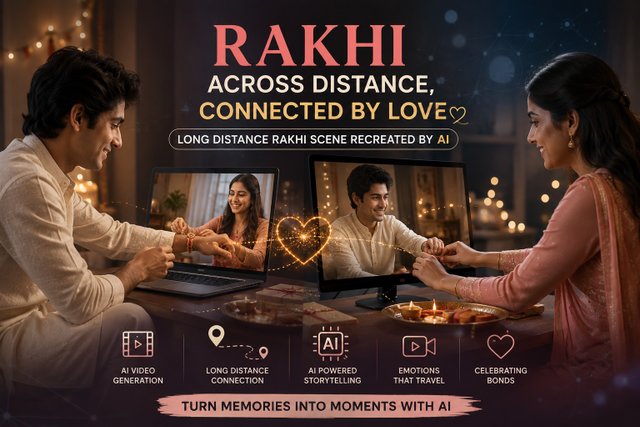
Create a cinematic Rakhi video from a single photo using AI video generation tools like Gemini, Wan, and Seedance. Follow this step-by-step guide to animate a Rakhi celebration naturally—even when the siblings are far apart.
Rakhi is about a simple moment: a sister tying a Rakhi on her brother's wrist, a smile, a blessing, and a memory that stays for years.
But what if the original moment was never captured on video?
With today's AI video-generation tools, you can take a carefully created or legally usable Rakhi photograph and turn it into a short cinematic video. Instead of simply applying a zoom effect, image-to-video models can attempt to recreate natural movements such as tying the Rakhi, smiling, blinking, looking at each other, and subtle camera motion.
In this tutorial, we'll create a 10-second long-distance Rakhi video using an AI image-to-video workflow.
What You Will Create
The final concept is a cinematic Rakhi scene where:
A sister gently ties a Rakhi around her brother's wrist.
The brother looks at the Rakhi and smiles.
He looks back at his sister warmly.
The sister reacts naturally.
Hands and heads move subtly.
Blinking remains soft and realistic.
The camera focuses first on the Rakhi and hands.
The shot gradually moves toward their faces.
Warm indoor lighting creates an emotional festive atmosphere.
The goal is not to make the image look like a cartoon.
The goal is to make the original photograph feel alive.
Animate this photo naturally: the sister gently ties a rakhi thread on the brother's wrist, he smiles and looks at it, then looks up at her with warmth. Add subtle hand and head movement, soft natural blinking, gentle smile forming. Warm indoor lighting, soft background blur, slow emotional pacing, 10 seconds, cinematic close-up on hands then faces.
This prompt works because it describes more than just the subject.
It tells the AI:
Who moves
What movement happens
What happens next
How the characters should react
How much movement to use
What the camera should focus on
What emotional tone to maintain
How long the scene should feel
That is important when working with image-to-video models.
Step 1: Start With the Right Photo
Before opening an AI video generator, choose your image carefully.
A good source image should have:
Clear faces
Clearly visible hands
A visible wrist
Natural body positions
Good lighting
Enough space around the characters
A realistic Rakhi setup
Minimal motion blur
No major objects covering the hands
Why the hands matter
The most important action in this scene is the Rakhi being tied.
If the original photograph doesn't clearly show the brother's wrist and the sister's hands, the AI has less visual information to work with.
This can lead to:
Extra fingers
Incorrect hand positions
A distorted Rakhi
Hands merging together
The Rakhi appearing and disappearing
Unnatural arm movement
For image-to-video generation, a good starting image is often more important than adding a huge prompt.
Step 2: Try Gemini First
Gemini currently supports creating videos from image references through its video-generation workflow. Google's documentation says Gemini can create videos from uploaded images, with up to five images supported, and the current Gemini video experience can generate 10-second clips.
Gemini workflow
Open Gemini.
Sign in to your Google account.
Open the video-generation option.
Upload your Rakhi image.
Paste the prompt from this article.
Generate the video.
Watch the complete clip.
Check the hands, Rakhi, faces, and eye movement.
If the result is close but not perfect, refine the prompt.
Generate another version.
Google also allows generated videos to be edited using follow-up instructions, such as changing objects, characters, camera angles, or aspects of the scene.
Try a refinement prompt
If the first generation looks too artificial, don't immediately throw away the image.
Try:
Keep the original faces, clothing, Rakhi design, room, and composition unchanged. Reduce all unnecessary movement. Make the sister's hand movement slow and physically natural while tying the Rakhi. Keep the brother's face stable. Add only subtle blinking and a gentle smile. Preserve identity and facial structure. Cinematic realistic motion, no exaggerated expressions.
This tells the model what not to change.
Step 3: What If Gemini Doesn't Generate the Result You Want?
This is where you can try another image-to-video model.
AI video generation is not deterministic. The same photograph and prompt can produce different results across different models.
If Gemini gives you:
distorted hands
strange facial expressions
excessive movement
changing clothes
disappearing Rakhi
unnatural eye movement
face deformation
try another model rather than endlessly rewriting the same prompt.
Two alternatives worth exploring are Wan and Seedance.
Step 4: Try Wan for Image-to-Video
Wan is an open video-generation model family with image-to-video capabilities. Wan2.1 has official image-to-video implementations, including 14B models and integrations with tools such as Diffusers and ComfyUI.
Important: Is Wan completely free?
Not necessarily.
The model itself is available openly, but running large video models locally requires appropriate hardware. Hosted websites that provide Wan may have their own free credits, queues, limits, or paid plans.
So think of Wan as a free/open model option, not a guarantee of unlimited free cloud generation.
Basic Wan workflow
Step 1: Prepare your Rakhi image.
Step 2: Open a Wan-compatible image-to-video interface.
Step 3: Upload your image.
Step 4: Select an image-to-video model.
Step 5: Add the animation prompt.
Step 6: Keep the motion strength relatively controlled.
Step 7: Generate a short clip.
Step 8: Check the hands and Rakhi first.
Step 9: Generate another variation if necessary.
Wan's official model documentation demonstrates image-to-video generation using an input image plus a text prompt.
Wan prompt
Realistic cinematic Rakhi celebration. Preserve the exact identity, face, hairstyle, clothing, jewelry, Rakhi and room from the reference image. The sister slowly and naturally ties the Rakhi around the brother's wrist. The brother gently looks down at the Rakhi, smiles naturally, then slowly looks toward his sister. Very subtle blinking, natural breathing and tiny head movements. Keep hands anatomically correct and stable. No exaggerated movement. Warm Indian indoor festive lighting, shallow depth of field, realistic skin texture, emotional family atmosphere, slow cinematic pacing, close-up beginning on the hands and Rakhi before gently moving toward their faces.
Step 5: Try Seedance
Seedance is another strong option for this type of scene.
The official Seedance 2.0 documentation describes support for image, video, audio, and text references, along with image-to-video generation and improved control over motion, camera movement, lighting, and interactions.
This makes it particularly interesting for scenes where two people interact with each other.
Seedance workflow
Open a Seedance-compatible interface.
Choose image-to-video.
Upload the Rakhi photograph.
Enter the motion prompt.
Keep the action simple.
Generate the clip.
Inspect the Rakhi and hands.
Check whether both faces remain consistent.
Generate another variation if necessary.
Select the most natural version.
Seedance 2.0 supports multimodal references and is designed to handle complex interactions and motion with greater control.
Why Simple Prompts Often Produce Better Results
A common mistake is writing an enormous prompt containing twenty different actions.
For example:
Sister ties Rakhi, brother smiles, sister laughs, camera rotates, flowers move, candles flicker, family walks in, camera zooms, brother talks, sister cries...
That's too much.
The model has to solve too many things simultaneously.
For this scene, we only need a few important actions:
Tie → Look → Smile → Look at each other
That's enough.
The emotional impact comes from small movements, not chaotic movement.
The Secret: Control the Motion
For an emotional family video, don't ask the AI to make everyone move dramatically.
Use phrases such as:
subtle hand movement
natural blinking
gentle smile
slow head movement
realistic breathing
minimal body movement
stable facial identity
preserve original clothing
preserve original composition
slow cinematic pacing
Avoid phrases such as:
dramatic movement
energetic action
fast camera movement
exaggerated expressions
rapid head movement
unless those movements are actually needed.
Fixing Common AI Video Problems
Problem 1: The hands look strange
Try:
Keep both hands anatomically correct and stable. Preserve the original hand structure. The Rakhi should remain attached naturally to the brother's wrist throughout the shot.
Problem 2: The face changes
Try:
Preserve the exact facial identity and facial structure from the reference image. Do not change age, hairstyle, skin tone, facial proportions, or clothing.
Problem 3: The Rakhi disappears
Try:
Keep the same Rakhi visible throughout the animation. Maintain its exact color, shape, position and thread structure. Do not replace or remove the Rakhi.
Problem 4: Everyone moves too much
Try:
Use extremely subtle motion. Keep the torso and body mostly still. Only animate the hands, eyes, small head movements and facial expressions required by the action.
Problem 5: The video feels robotic
Try:
Natural human micro-movements, realistic timing, subtle breathing, soft blinking, slight facial muscle movement and physically believable hand motion. Avoid mechanical or exaggerated animation.
A Better Two-Pass Workflow
If your first generation isn't perfect, don't try to force one generation to do everything.
Use a two-pass approach.
Pass 1 — Generate the basic movement
Focus on:
Sister ties Rakhi → brother looks down → brother smiles
Keep the camera relatively stable.
Pass 2 — Improve the emotional ending
If your tool supports video editing, ask it to refine the ending:
Keep the generated scene unchanged. Improve only the final reaction: the brother slowly looks toward his sister with a warm natural smile while she gently looks back at him. Preserve both identities and clothing.
This approach can be more reliable than asking for a complicated sequence from the beginning.
How to Make the Video Feel Cinematic
The AI generation is only half the process.
After generating the clip, you can improve it with a video editor.
Add:
Soft background music
Very subtle Rakhi ambience
Gentle sound effects
Slow fade-in
Slow fade-out
Warm color correction
Slight film grain
Subtle vignette
Don't overdo it.
The emotional moment should remain the focus.
Suggested 10-Second Timeline
0–3 seconds
Close-up of the hands
The sister begins tying the Rakhi.
3–6 seconds
Brother looks at his wrist
He notices the Rakhi and begins to smile.
6–8 seconds
Brother looks toward his sister
His expression becomes warm and emotional.
8–10 seconds
Close-up of both faces
They share a subtle smile.
This creates a tiny story rather than just animating a photograph.
Long-Distance Rakhi: Making the Concept More Powerful
This workflow becomes even more interesting when the siblings are actually living in different cities or countries.
Instead of trying to create one physically impossible scene, you can create two separate images.
For example:
Frame 1: Sister preparing the Rakhi in Hyderabad.
Frame 2: Brother sitting in Bengaluru.
Then use AI video generation and editing to create a visual story around the distance.
You can also create a split-screen sequence:
Sister → AI-generated movement → transition → Brother → Rakhi → emotional reaction
The result can feel like a short cinematic memory rather than a simple AI animation.
Important: Use Photos You Have Permission to Use
If you're uploading photographs of real people, make sure you have the necessary rights or permission to use them.
Google specifically states that users should only upload photos they have the right to use and should respect copyright and privacy rights when generating videos.
This is especially important if you're creating videos for clients, advertisements, or public social-media posts.
Is AI-Generated Content Good for an AdSense Blog?
Yes, an AI-focused blog can contain AI-generated material, but simply generating articles with AI and publishing them in bulk is not a good AdSense strategy.
Google's AdSense guidance emphasizes original, useful, high-quality content and says publishers should add their own value rather than relying on scraped or copied material.
That's why this type of article should include more than a generic explanation.
A useful tutorial should contain:
Your actual prompt
Your workflow
Screenshots or examples
Tool comparisons
Failed-generation examples
Fixes for common problems
Step-by-step instructions
Your own observations
Original examples
Clear explanations for beginners
That makes the page useful even if the reader has never used AI video tools before