How to Create Viral Sigma Style AI Videos Using Google Gemini/flow
Create trending Sigma-style AI videos using your own photo, Google Gemini and a reference video with this simple step-by-step tutorial.
By loki invents
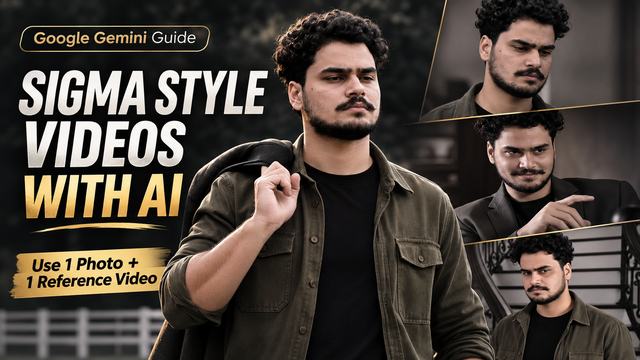
Replace the person's face in the reference video with my face from the uploaded photo in ALL six shots, starting from the very first frame. The original person's face must never appear, not even for one frame. Keep my face 100% identical with strict identity lock in every shot, including the wide walking shot at the start and the sofa shot where the face is small. Hair stays exactly as in my photo, the same in all six shots. In the reference, the original person has a slim young face and a dark bowl haircut in every shot - remove that face and that bowl haircut in EVERY shot and use my face and my hair instead. Preserve the original video's body movements, expressions, gestures, background, camera angles, cuts and timing. Clothes: in every shot I wear the exact outfit from my uploaded photo, never the reference person's checked shirt. Only two clothing items stay from the reference: the dark jacket carried over my shoulder in the first shot and the dark blazer I wear in the blazer shot. These are only clothes - the person wearing them is always me.
Keep all six shots in the same order and length as the reference video, and in every shot the face is my face from the uploaded photo:
0.0-1.25s: walking past the white fence with the dark jacket slung over my shoulder (held by the collar, carried, not worn), wearing my own outfit from the photo, my face clearly visible from frame 1. The jacket on the shoulder must be visible.
1.25-2.0s: slow close-up, head turned, looking down, my face and my hair, never the bowl haircut, my own outfit from the photo.
2.0-2.7s: close-up looking to the side, my face and my hair, never the bowl haircut, my own outfit from the photo.
2.7-3.4s: sitting on the brown leather sofa with an arm on the backrest, my face and my hair, my own outfit from the photo.
3.4-4.2s: me in a dark blazer, smirking and pointing at the camera. MOST IMPORTANT SHOT: the person in the blazer is the SAME person as in all the other shots, so it is me: my face, my hair, my skin tone and my hands from the photo. In the reference this shot shows a slim young boy with a dark bowl haircut - he must NOT appear here at all; replace his face and haircut completely with my face and my hair, exactly like in the sofa shot just before. Only the dark blazer garment is taken from the reference, with my own top from the photo underneath. Keep the blazer, the smirk, the pointing hand and the background. The dark blazer must be clearly visible in this shot.
4.2-5.15s: standing in the office with framed pictures behind, one arm stretched to the side, wearing my own outfit from the photo (not the reference's white checked shirt, not a blazer), my face. This last shot must be in the video.
Change the face, hair and clothes as described above. The same person (me) appears in all six shots, the blazer shot and the office shot included. The face in the blazer shot must match the face in the sofa shot and the office shot. Make it ultra-realistic, seamless and consistent in every frame. No face distortion or flickering. No original face in any shot, not even during a transition between shots.
How to Create Sigma Style Videos With Your Own Photo Using AI
Want to recreate trending Sigma-style videos with yourself as the main character? You can use Google Gemini, your own photograph and the reference materials provided in this guide to create a personalized cinematic AI video.
You don't need advanced filmmaking or complicated editing skills. Simply follow the steps below.
Step 1: Download the Reference Video
Download the reference video provided in this post. This video will help the AI understand the character movements, expressions, camera angles, cinematic lighting and overall visual style that you want to recreate.
Step 2: Download the Muted Video
Use the muted version of the reference video provided in this guide. If you are using the original video, remove its audio using any video editing application and export it.
Keep the original audio separately, as you will need it during the final editing stage.
Step 3: Open Google Gemini
Visit https://gemini.google.com/ and sign in with your Google account.
Select the video generation option if it is available on your account.
Upload the following reference materials:
The muted reference video.
A clear photograph of yourself.
For better facial consistency, use a high-quality photograph with clear facial details and good lighting.
Step 4: Copy and Paste the AI Video Generation Prompt
Copy the prompt provided below and paste it into Google Gemini along with your reference materials.
The objective is to recreate the reference video's cinematic style, actions, expressions and camera movements while replacing the main character with yourself.
Generate the video and download the result. If Gemini does not accept a video reference in your current generation mode, this exact workflow may not be supported on your account.
Step 5: Add the Original Reference Audio
Open any video editing application such as VN, InShot, KineMaster or DaVinci Resolve.
Import your newly generated AI video into the editing timeline. Mute any unwanted generated audio and import the reference audio provided in this guide.
Adjust the audio timing to match the character's movements and cinematic moments.
Step 6: Export Your Final Sigma Style Video
Preview the complete video and check the facial consistency, movement and audio synchronization.
Export the video in the highest suitable quality available, preferably 1080p.
Your personalized Sigma-style AI video is ready to share on Instagram Reels, YouTube Shorts or WhatsApp Status.
Pro tip: Use your own photograph or a photograph you have permission to use, and ensure you have permission to reuse the reference footage and audio before publishing your video.